Database error
Usually tied to server state, account state, leaderboard, ELO updates, or a temporary backend issue.
Interactive Omoggle repair guide
When Omoggle breaks, users do not need a history lesson. Pick the problem you see, get the likely fix path, then use the detailed checklist below for camera permission, black screen, mobile browser, database, and loading issues.
Built for hard troubleshooting queries like Omoggle database error, camera blocked, black screen, and mobile camera not working.
omoggle database error camera fix
Select the issue that matches what you see. The tool gives a fast first path, then the page explains the full checklist.
Fix path
Start with the exact error, then test one change at a time.
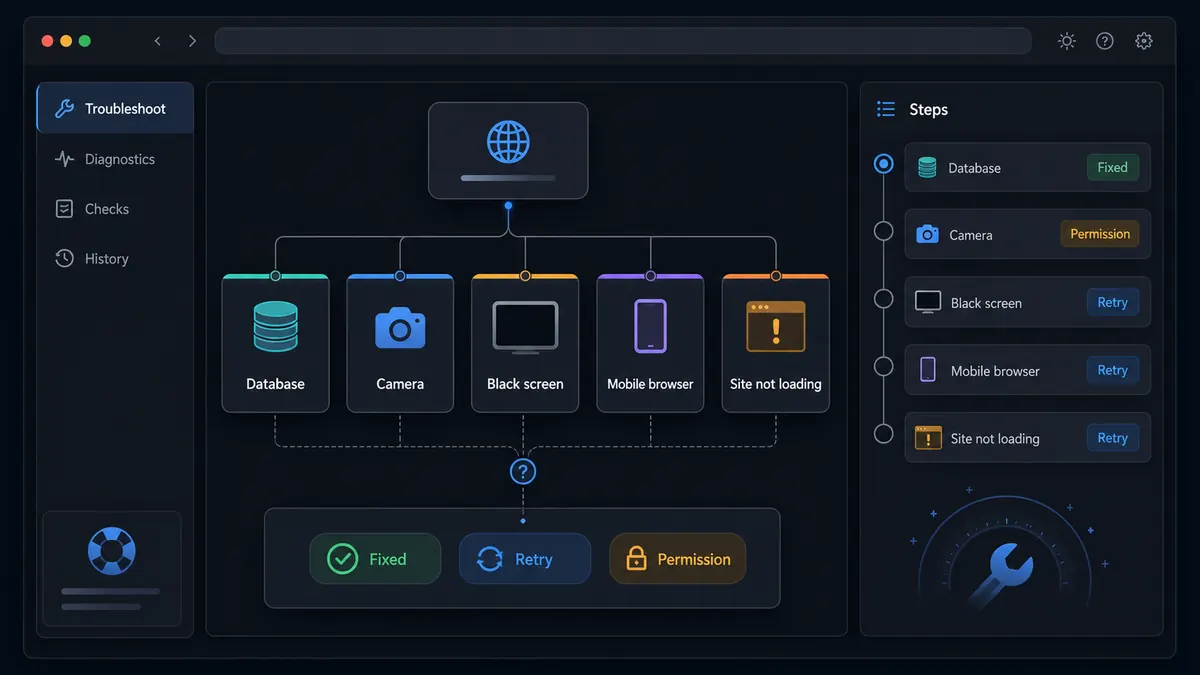
Most Omoggle issues fall into five buckets: browser permission, camera ownership, domain confusion, network load, or server-side state.
Camera blocked and black screen errors usually begin in browser permissions or another app holding the webcam. Database errors and leaderboard problems are more likely to involve account state or server-side systems.
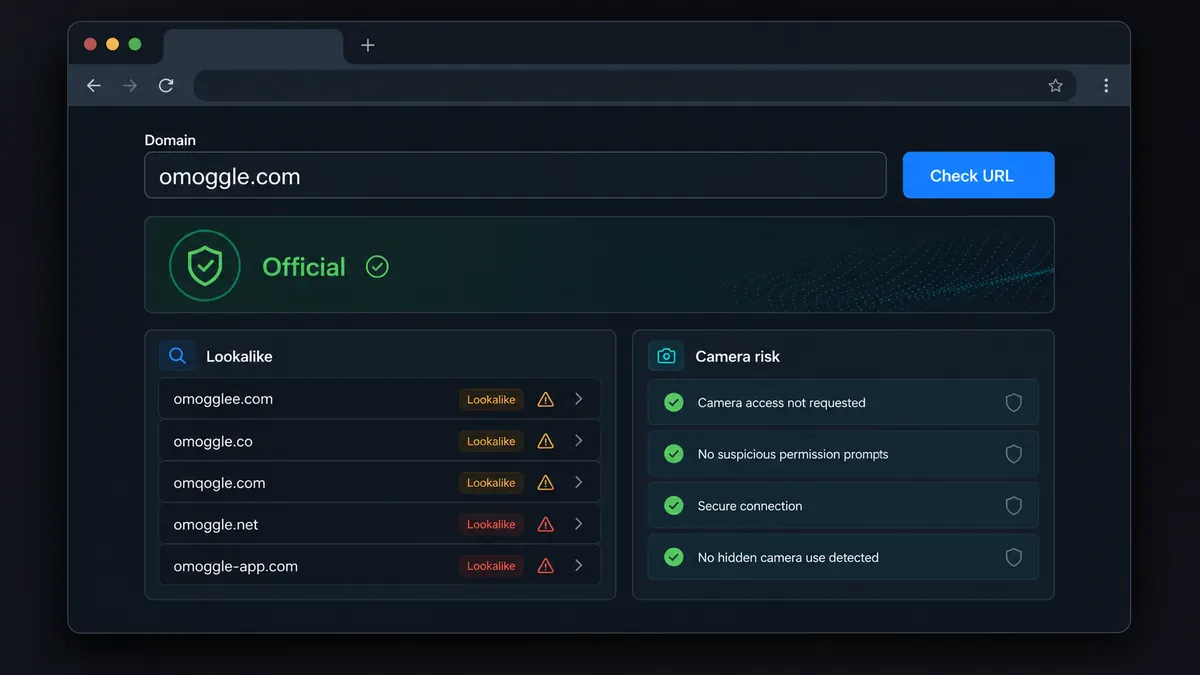
Domain confusion adds another layer. If you are on a lookalike site rather than omoggle.com, a fix written for the official site may not apply.
The repair sequence should be small and reversible: verify the domain, check permission, close other camera apps, refresh once, then escalate to network and account checks.
Choose the closest symptom before you start changing settings.
Usually tied to server state, account state, leaderboard, ELO updates, or a temporary backend issue.
Most often caused by browser site permissions, OS privacy settings, or another app using the camera.
Can come from camera ownership conflicts, privacy extensions, virtual camera issues, or mobile browser bugs.
iOS and Android handle camera permission differently, especially after denied prompts.
Check the exact domain, VPN, ad blockers, network, and whether the page is a lookalike or parked site.
Avoid APKs, extensions, and tools claiming to fix Omoggle or boost score.
Start with the smallest change that matches the symptom.
A black screen and a database error should not be fixed the same way. The first is usually camera/browser/device; the second is usually account/server state. Isolate the layer before changing everything.
If the page looks like Omoggle but behaves differently, you may be on a separate site. Camera prompts, app downloads, account systems, and leaderboard behavior can vary across domains.
Use these in order so you can tell which fix actually worked.
Make sure the issue is happening on the site you think you are using. Similar domains can have different code, policies, and outages.
Domain checkerOpen site settings for the exact address, set camera to allow, then reload. If you denied once, the browser may keep blocking silently.
Zoom, Discord, FaceTime, OBS, Snap Camera, and browser tabs can keep the webcam busy even when minimized.
Use a private window or fresh browser profile with extensions disabled. This isolates privacy blockers and old cached permissions.
Refresh once, sign out and back in if applicable, then wait. Repeated database errors after that may not be fixable from your device.
Use the right helper for the layer that is failing.
Check whether the browser can access your camera before opening the live arena.
Verify whether the issue is happening on an official, lookalike, typo, or unknown domain.
Once camera works, improve lighting, framing, privacy, and connection quality.
Understand download and APK risks if a page claims an app is required.
Troubleshooting queries are small now, but they are high-intent.
Users searching database error need a direct answer about account/server state, not a general Omoggle explanation.
Camera blocked and black screen users are already close to playing, so a fix finder can capture useful engagement.
Mobile users need iOS and Android permission guidance because camera prompts behave differently across devices.
Quick answers for the most common failure modes.
Refresh once, sign out and back in if you use an account, then wait a few minutes. If ELO, leaderboard, or account data is affected, the issue may be server-side.
The browser or operating system may be denying camera access for the exact domain, or another app may already be using the webcam.
A black screen can come from camera conflicts, privacy extensions, virtual cameras, outdated browsers, or mobile browser bugs.
Use Safari, check iOS camera permissions for Safari, reload the page, and avoid private browsing modes or embedded browsers that block camera access.
No. Avoid APKs, extensions, or desktop files claiming to fix Omoggle. Troubleshooting should happen through browser, device, and network settings.
Start with the exact symptom, then test domain, camera permission, app conflicts, clean browser state, and server-side wait time.
Do not install a random fixer just because Omoggle is not loading.
Independent guide. We cannot repair Omoggle servers; this page helps isolate user-side causes first.